
Everyday use can leave your PC with temporary files, forgotten downloads, app data, and other items that take up storage.
Many of these files serve a purpose, but some are no longer needed after a while.
When your drive starts to fill up, installing apps, downloading documents, or saving new files can become difficult.
Cleaning up Windows periodically can help, especially when free space is running low.
That doesn’t mean deleting everything that looks unnecessary.
The key is knowing what you can safely delete, what you need to keep, and which tools can help.
In This Guide
- What does cleaning up Windows mean?
- Why does Windows accumulate temporary files?
- How to clean up Windows 11 step by step
- 6. Review your Downloads folder
- 8. Find the files taking up the most space
- 9. Use dedicated Windows cleanup tools
- What should you avoid deleting?
- Cleanup and maintenance go together
- Conclusion
- Windows Cleanup FAQs
What does cleaning up Windows mean?
Cleaning up Windows means reviewing files you no longer need, organizing storage, and freeing up disk space.
Start by reviewing these items:
- Temporary files.
- App caches.
- Recycle Bin contents.
- Old downloads.
- Duplicate files.
- Leftover app data.
- Personal files you no longer use.
Don’t delete all of these items automatically.
An old download, for example, may contain an important document.
Use cleanup tools alongside a careful review of your files.
Why does Windows accumulate temporary files?
Windows and apps create temporary files to carry out different tasks.
They can be used during:
- Installations.
- Updates.
- Document processing.
- Web browsing.
- App use.
- Background system operations.
Many are removed automatically when no longer needed.
Others may stay on the drive longer.
That doesn’t necessarily indicate a problem.
If they start taking up too much space, review the available cleanup options.
How to clean up Windows 11 step by step
Windows includes storage tools you can use without installing additional software.
Start with the built-in tools.
1. Check your available storage
Before deleting anything, check how much storage is in use.
In Windows 11:
- Open Settings.
- Select System.
- Open Storage.
- Check how much space is used and how much is available.
Windows may show categories such as installed apps, temporary files, and other items.
2. Remove temporary files in Settings
Go to System → Storage and select Temporary files.
Windows will scan for categories that may contain files you can remove.
3. Use Storage Sense
Windows includes a feature called Storage Sense.
It helps manage temporary files and free up space according to your settings.
4. Empty the Recycle Bin
Many deleted files stay in the Recycle Bin until you empty it.
5. Clear your browser cache when needed
Browsers save some data to help websites load faster.
The cache stores resources from pages you’ve visited.
6. Review your Downloads folder
Sort files by size or date.
This makes it easier to see what takes up space and what you no longer need.
7. Uninstall apps you no longer use
To review your apps in Windows 11, go to:
Settings → Apps → Installed apps
8. Find the files taking up the most space
If your drive is nearly full, deleting small temporary files may not be enough.
Large personal files may be taking up most of the space.
Examples include:
- Videos.
- Multimedia projects.
- Compressed archives.
- Old backups.
- Installers.
- Project folders.
- Virtual machines.
9. Use dedicated cleanup tools for Windows
Explore Windows optimization software if you need tools beyond those built into Windows.
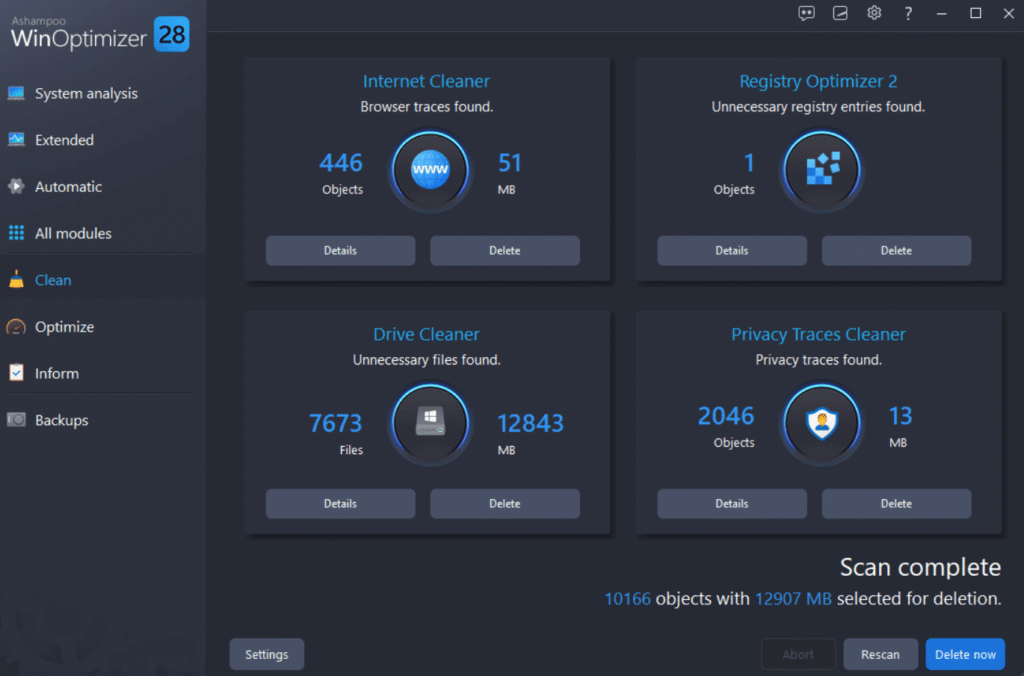
Maintaining Windows With Ashampoo WinOptimizer 28
Ashampoo WinOptimizer 28 is designed for Windows PC maintenance and optimization.
It brings several inspection and maintenance tools into one interface.
A dedicated tool can complement the storage features already in Windows.
Review the categories it finds and the actions it proposes before deleting files.
Focus on what you can safely remove.
What should you avoid deleting?
Files that take up space aren’t necessarily expendable.
Avoid manually deleting items from system folders unless you know what they do.
Keep these precautions in mind:
Leave system files alone
Windows, System32, and other protected folders contain components the operating system needs.
Check backups before deleting them
An old backup may be the only copy of some documents.
Consider what you’ll lose before deleting recovery files
Some cleanup options remove files that let you roll back to an earlier Windows version.
Review Downloads before clearing it automatically
It may contain important documents.
Don’t edit the Windows Registry to free up storage
Deleting registry entries is not a routine way to reclaim space. Incorrect changes can cause problems.
Cleanup and maintenance belong in the same plan
Keeping your PC in good shape involves several tasks.
Storage cleanup is one of them.
Also review updates, startup apps, resource use, and system settings.
For a broader approach, read our guide to optimizing Windows and improving PC performance.
Start with a specific maintenance goal.
There’s no need to keep deleting files or changing settings that already work.
Identify the problem and choose the fix that addresses it.
If your PC is still slow after you free up space, read our guide on how to optimize your PC for better Windows performance.
Conclusion
Cleaning up Windows can help you manage storage, remove unneeded temporary files, and reclaim disk space.
Windows 11 has built-in tools for many of these tasks.
Dedicated software such as Ashampoo WinOptimizer 28 can complement the built-in tools.
The main rule is simple:
Before deleting a file, know what it is and why you no longer need it.
A good cleanup leaves your PC organized and gives you more free space while preserving important files and keeping Windows stable.
Windows Cleanup FAQs
How do I clean up Windows 11 without deleting personal files?
Go to Settings → System → Storage → Temporary files and review the categories. Check what’s in Downloads or any folder that may contain personal documents before selecting it. Keep a backup of important files.
How do I delete temporary files in Windows 11?
Open Settings → System → Storage → Temporary files. Review the categories Windows lists and select only the items you don’t need.
How do I clear the Windows cache to free up space?
Use Windows storage settings to manage temporary files. To clear your browser cache, use the browsing data controls in Chrome, Edge, or Firefox. Avoid manually deleting system folders if you don’t know what they do.
What can I safely delete to free up space in Windows?
Review temporary files Windows identifies, Recycle Bin contents, unneeded downloads, and apps you no longer use. Check what each item is and whether you still need it before deleting it.
Why is my C: drive full when I don’t have many files?
Apps, updates, system files, user data, and caches may take up space outside the folders you usually check. Go to Settings → System → Storage to see what is using the space.
What is the best tool for cleaning up Windows?
It depends on what you need. Windows 11 includes cleanup and storage tools, and dedicated utilities such as Ashampoo WinOptimizer 28 offer additional maintenance features. Use a tool you trust and review files before deleting them.