

CLEANUP · BACKUPS · PRIVACY
Windows System Utilities
Find genuine Windows software to clean up unnecessary files, uninstall apps, update drivers, back up your data, and manage privacy settings.
Find the Right Tool for Your PC
Explore tools for PC maintenance, driver updates, backups, and privacy. Check each product page for features, system requirements, and license terms.
Choose a tool based on the problem you want to solve. Check its features, supported Windows versions, system requirements, and license terms. Before making major changes, back up your files and follow the software’s instructions.

Why Use Windows System Utilities?
A More Responsive PC
Free up disk space and manage background processes. Results depend on what’s slowing your PC down.
More Thorough App Removal
Find and remove files and settings left behind by apps you no longer use.
Stability and Compatibility
Find drivers for your hardware and review available updates before installing them.
Recovery After a Failure
Back up files and your system so you can restore them when needed.
Windows Privacy
Manage data collection and tracking settings in Windows.
Tools for Everyday PC Maintenance
Choose a tool for the task at hand: cleanup, app removal, driver updates, backups, or privacy.
How to Choose the Right Software
Start with what you need to do: free up space, remove an app, update a driver, create a backup, or review your privacy settings.
| What Do You Need to Do? | Recommended Software |
|---|---|
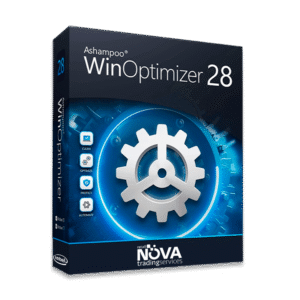
| Remove unnecessary files and maintain Windows | WinOptimizer 28 |
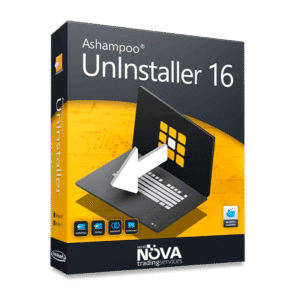
| Uninstall apps and check for leftovers | UnInstaller 16 |
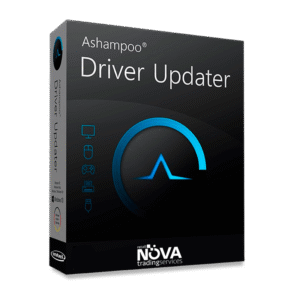
| Update hardware drivers | Driver Updater |
| Back up files and your system | Backup Pro 27 |
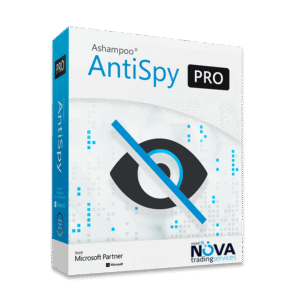
| Manage Windows tracking and telemetry | AntiSpy Pro |
Why Buy Genuine Windows Utilities?
Choose official licenses from established software vendors. Check what features, support, and updates each version includes.
Check Windows requirements and back up your data before making major changes. Genuine software helps you avoid the risks of modified installers, but careful maintenance still matters.

Tips for Maintaining Your Windows PC
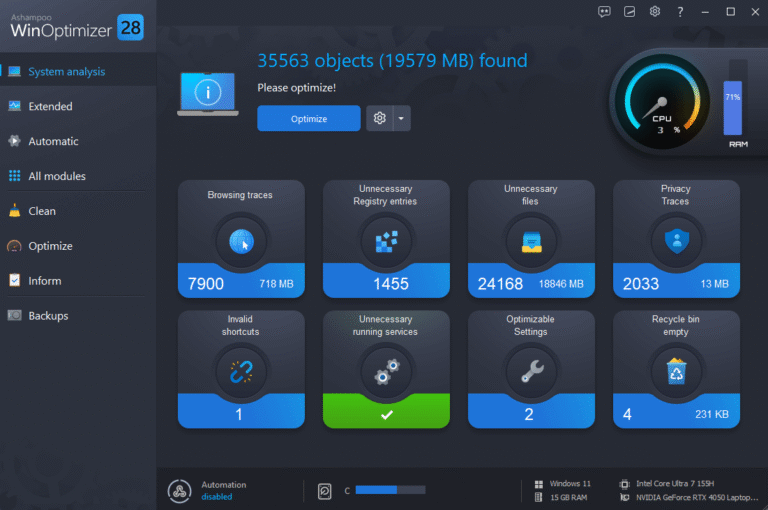
How to Optimize Your PC for Better Windows Performance
Does your PC take too long to start or open apps? Learn how to improve Windows performance and spot processes that use too many resources…
Read more: How to Optimize Your PC for Better Windows Performance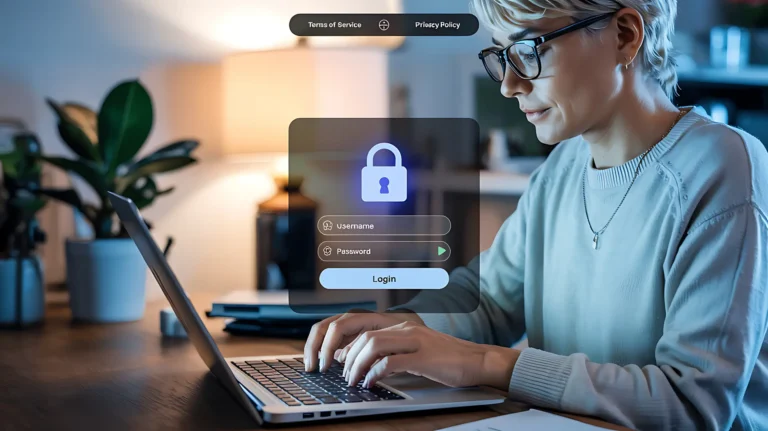
How to Improve Windows Privacy and Control Your PC Data
Improve your Windows privacy by checking what data your PC stores, reviewing app permissions, and managing privacy settings…
Read more: How to Improve Windows Privacy and Control Your PC DataWindows System Utilities FAQs
Why does my Windows PC slow down over time?
Low disk space, too many startup apps, background processes, or hardware limitations can affect performance. WinOptimizer 28 helps remove unnecessary files and manage system settings. Results depend on the PC and what’s causing the slowdown.
How is UnInstaller different from the built-in Windows uninstaller?
UnInstaller 16 can monitor installations and look for leftover files and registry entries. How much it can remove depends on the app and whether the original installation was monitored.
Is it safe to update my PC drivers with Driver Updater?
Driver Updater identifies your hardware and looks for compatible drivers. Review suggested updates and create a backup or restore point before applying them. Updates can fix compatibility issues, but they may not resolve every problem.
Why do I need backup software if I use cloud storage?
Cloud sync and a full system backup serve different purposes. Backup Pro 27 can back up files and your system for recovery. Test your backups and recovery media: syncing can also copy accidental changes or deletions.
Why buy genuine Windows utilities?
An official license lets you use the software legitimately and access any support and updates included in its terms. Check Windows requirements and back up your data before making major system changes.
Keep Your Windows PC Running Smoothly
Find tools to maintain your PC, back up your files, and manage Windows privacy settings.
You can also browse Digital Security, Productivity and all products.